04Happy Bites

Case studyFood & eventsMobile + web

Catering that feeds everyone.

Happy Bites is a catering app for weddings and events. Guests customise their own plate when they RSVP, and can donate part of their food to people who go hungry.
Role
Creative direction, app design, branding, UX writing
Year
2023
Scope
Brand, research, UX, UI, testing
Platform
Mobile + desktop
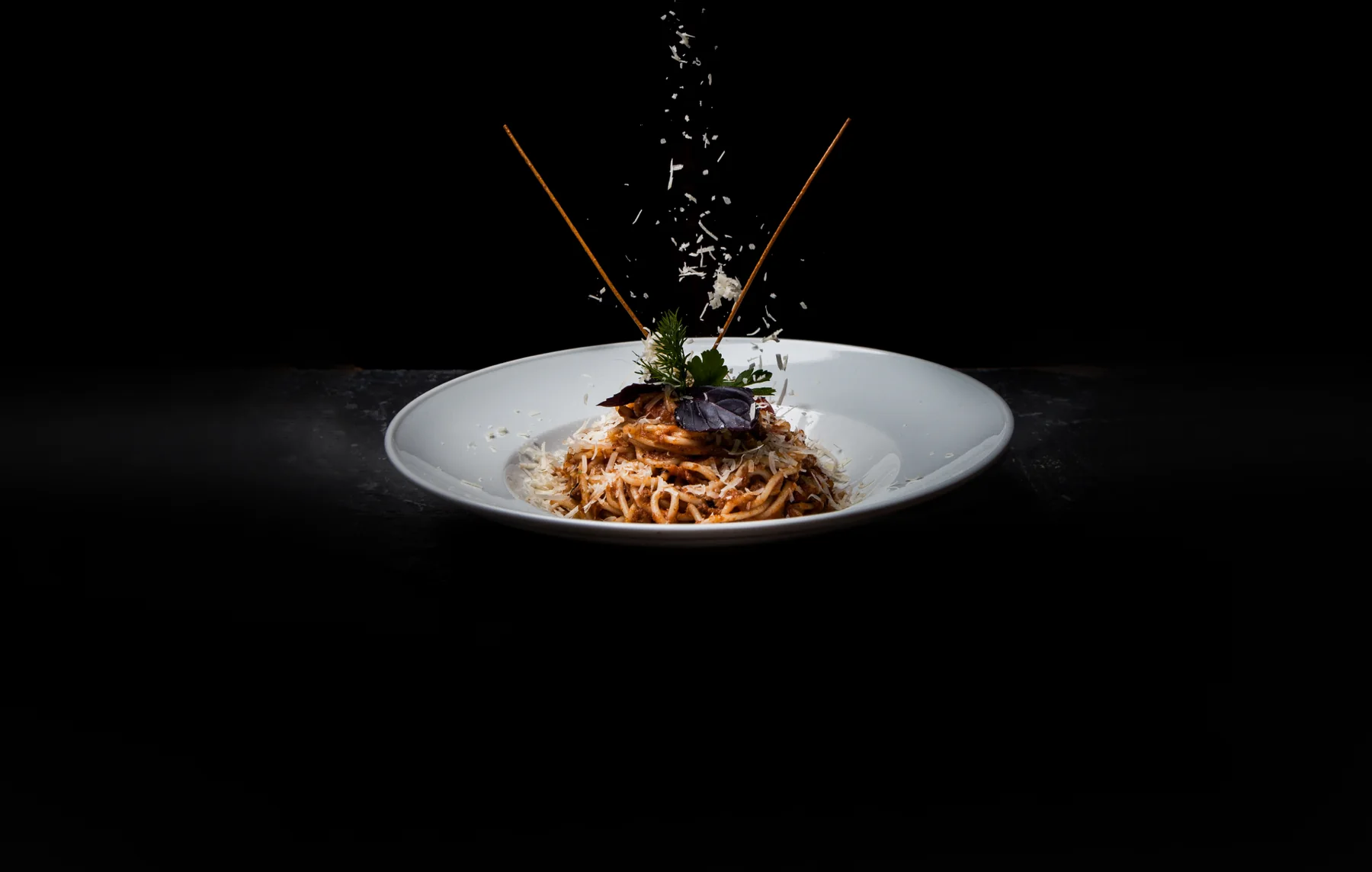
A plate of spaghetti in a dark studio, with grated cheese falling over it

01 — Overview

A menu for every guest.

At a wedding, the host plans one menu for many people. Some guests are from other countries or have allergies, and many worry about all the food that goes to waste. Happy Bites lets each guest choose, and give.

The problem

Hosts often have international guests, or guests who are allergic to some ingredients. Guests also worry about food waste at ceremonies. They believe that food could help hungry people, and that sharing it would share their happiness.

The solution

An app where guests customise their food to their taste and preferences while they RSVP, plus a way to donate part of it. A diabetic guest who can’t eat dessert, for example, can donate it to someone who is hungry.
  • 6steps in the design process
  • 3user pain points defined
  • 2personas
  • 5stages on the journey map
  • 2rounds of usability testing
  • 4screens redesigned after testing
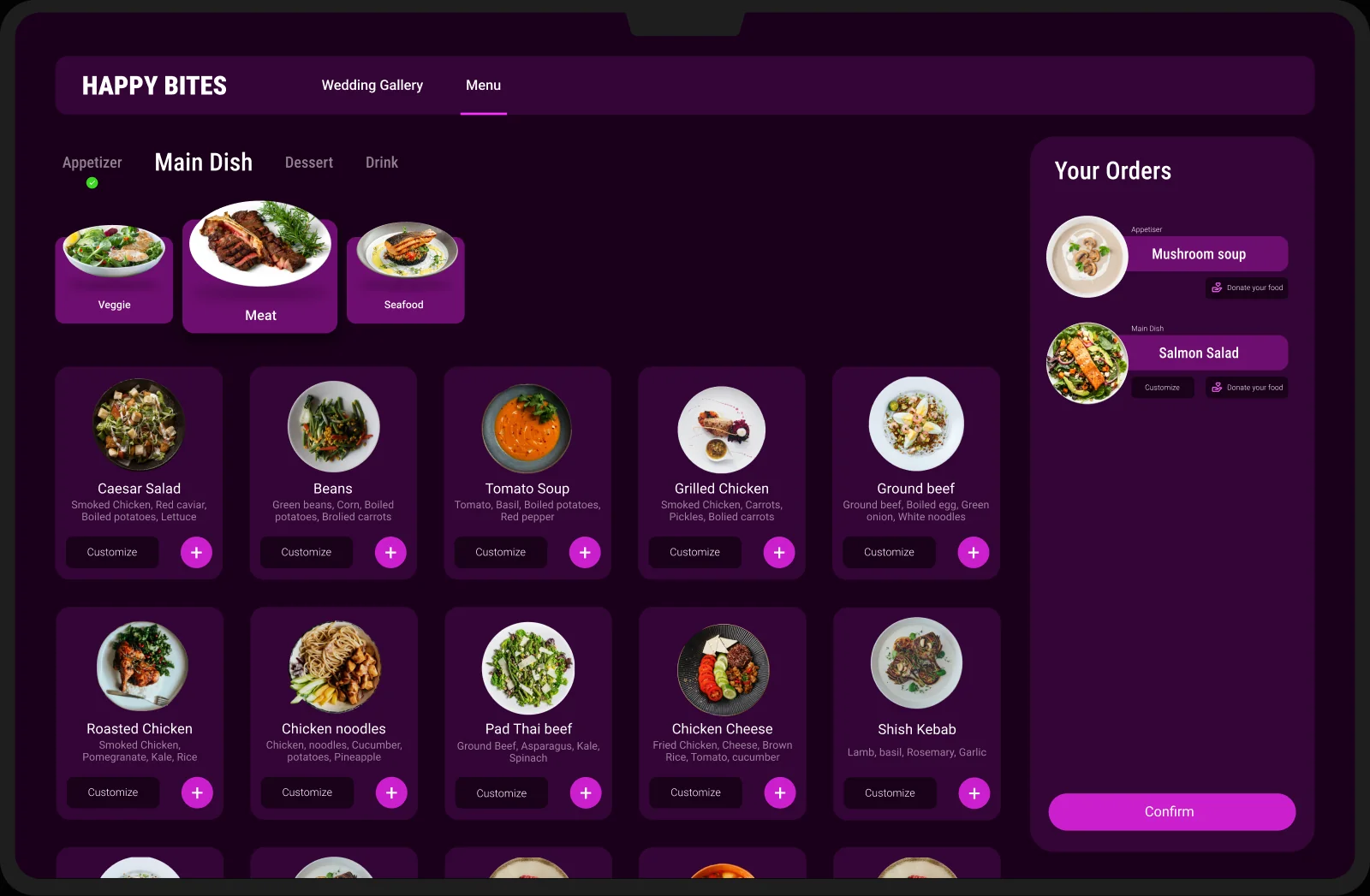
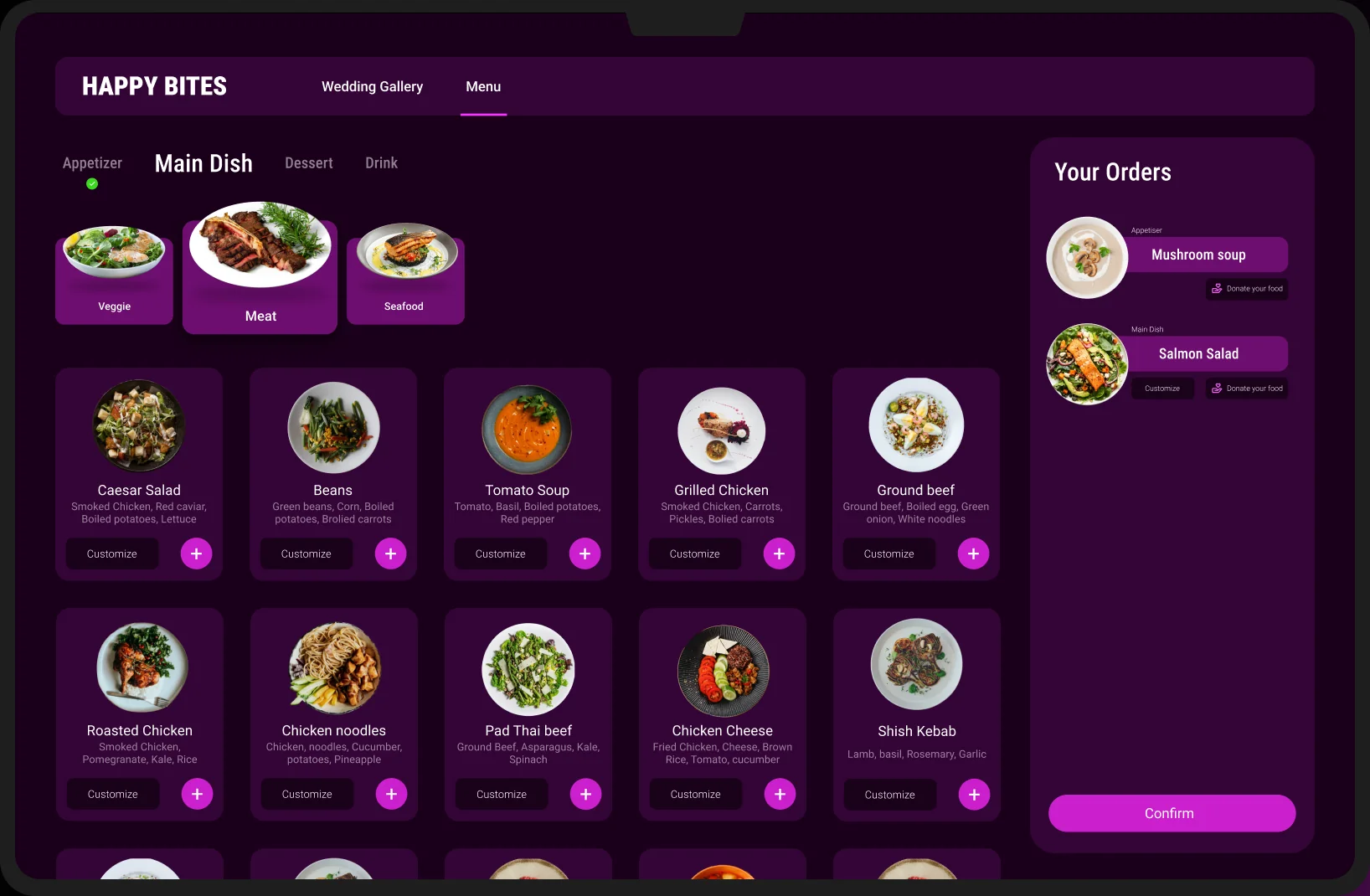
The Happy Bites menu on a laptop: dishes in a grid and the Your Orders panel
The desktop menu: browse by course, customise a dish, and review the order.

02 — Brand

Dark, rich, and a little festive.

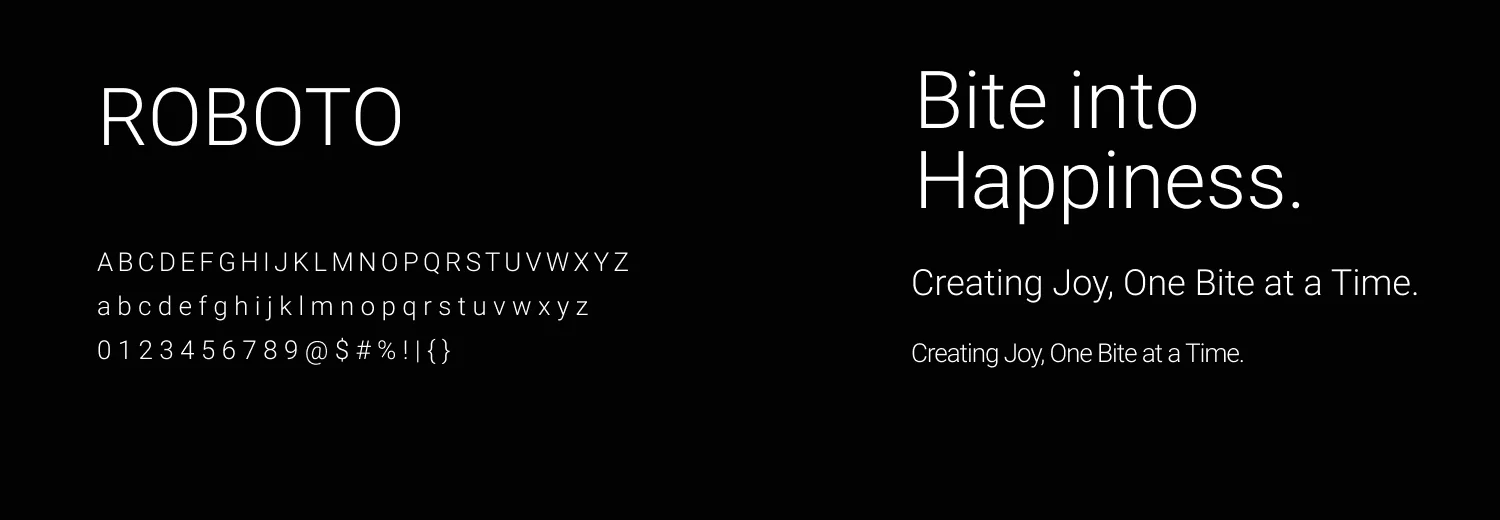
A deep purple base lets the food photography glow, and a vibrant magenta signals every action. Roboto keeps the type clean and easy to read.
The Happy Bites wordmark: HAPPY in magenta over BITES in white

Colour

Dark Purple#110111
Vibrant Magenta#CA20CD
Pinkish Purple#EE61F0

Typography

Roboto specimen with the line Bite into Happiness. Creating Joy, One Bite at a Time.

03 — Process

Six steps, in order.

I followed the design-thinking steps from first empathy to a working prototype, and went back whenever testing showed something was wrong.

Step 1Empathize
Step 2Define
Step 3Ideate
Step 4Wireframing
Step 5Research
Step 6Prototyping

04 — Research

Three things guests struggle with.

01

Various food tastes

Having international guests with different tastes and preferences.

02

Food waste

Worrying about food waste at ceremonies.

03

Accessibility

Mobile apps for food catering are not equipped with assistive technologies.

Personas
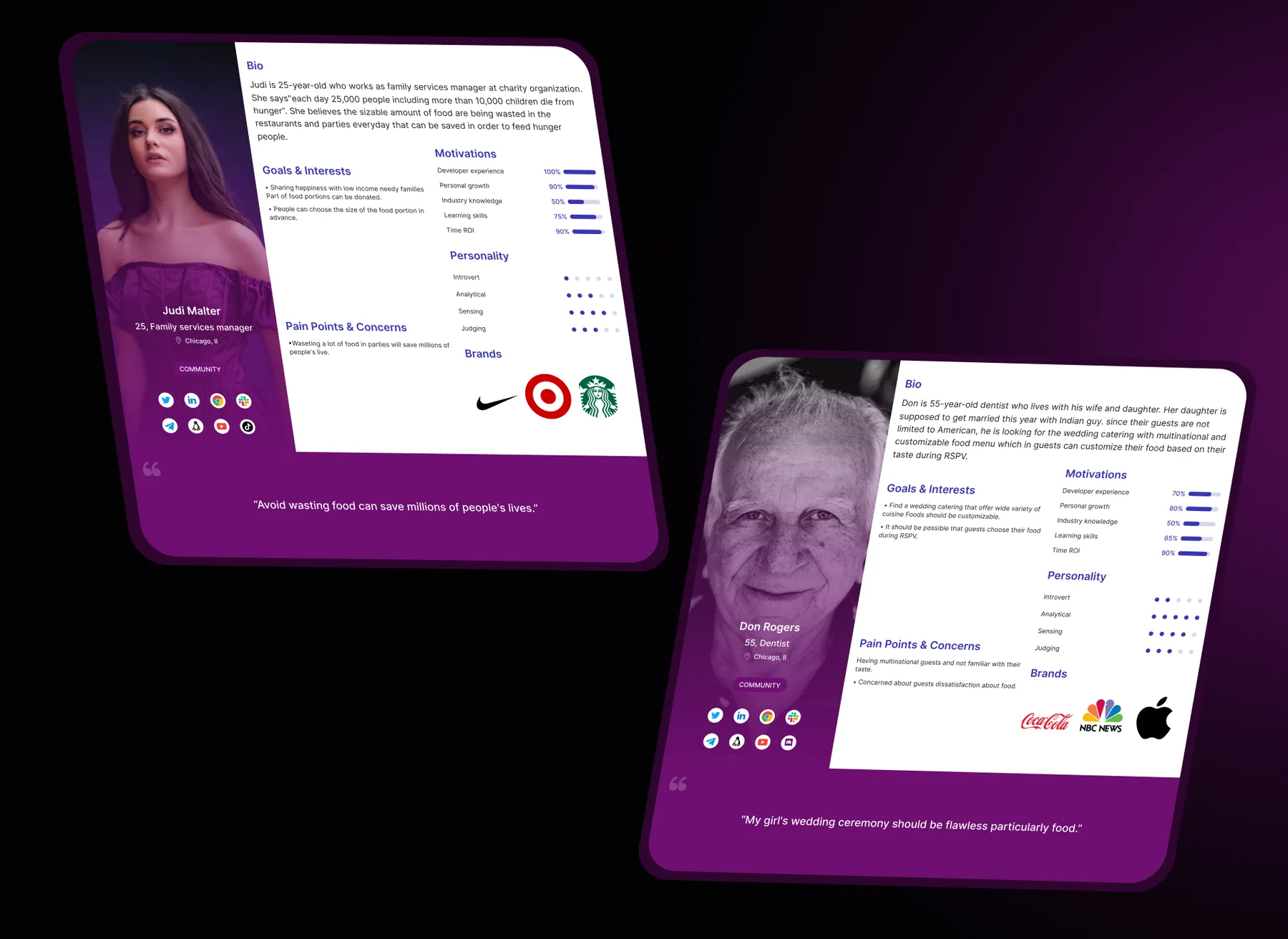
Two persona cards: Judi Malter, a family services manager, and Don Rogers, a dentist

Judi Malter

25 · Family services manager · Chicago, IL

Avoid wasting food can save millions of people’s lives.

Goals

  • Share happiness with low-income, needy families: part of the food portions can be donated
  • Choose the size of the food portion in advance

Pain points

  • Wasting a lot of food at parties could instead save millions of lives

Don Rogers

55 · Dentist · Chicago, IL

My girl’s wedding ceremony should be flawless, particularly the food.

Goals

  • Find a wedding caterer that offers a wide variety of cuisine, with customisable food
  • Let guests choose their food during RSVP

Pain points

  • Multinational guests whose tastes he doesn’t know
  • Worry that guests won’t be happy with the food

05 — Journey

From search to signing a contract.

The journey map follows a host through five stages: searching for the best caterer in the city, finding it, contacting it, making an appointment and signing a contract. At each stage I looked for where the experience could improve.
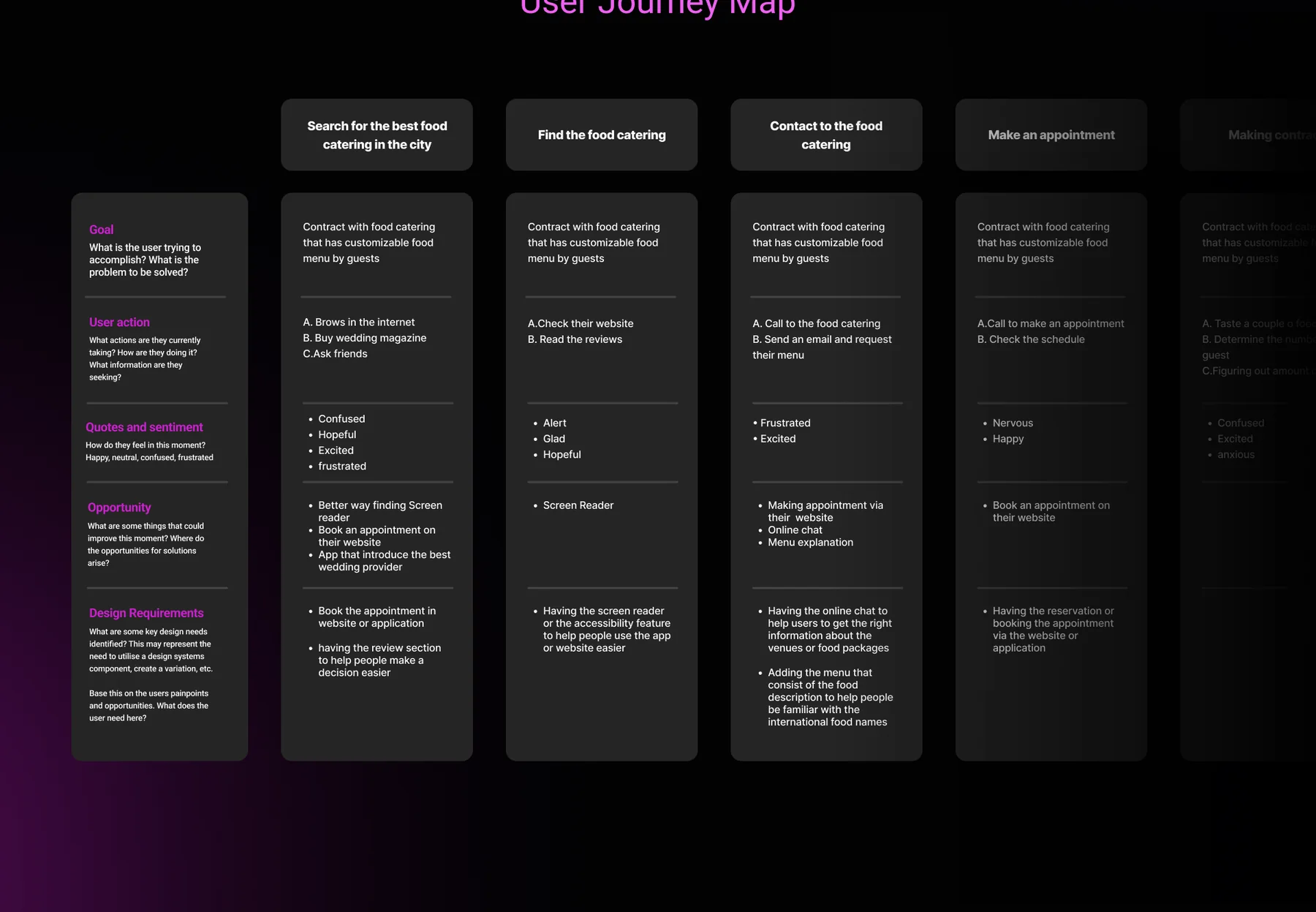
User journey map · full fileSwipe to explore
User journey map in five stages with actions, feelings, opportunities and design needs

What the journey asked for

  1. Better wayfinding, so people can find the right caterer and book an appointment on the website or in an app.
  2. A reviews section, to help people decide more easily.
  3. A screen reader and other accessibility features.
  4. An online chat, to get the right information about venues and food packages.
  5. A menu with food descriptions, so people become familiar with international dish names.

06 — Wireframing

Structure before style.

The wireframes set out the menu on mobile and desktop: course tabs on top, dishes in a grid, an order panel on the side.
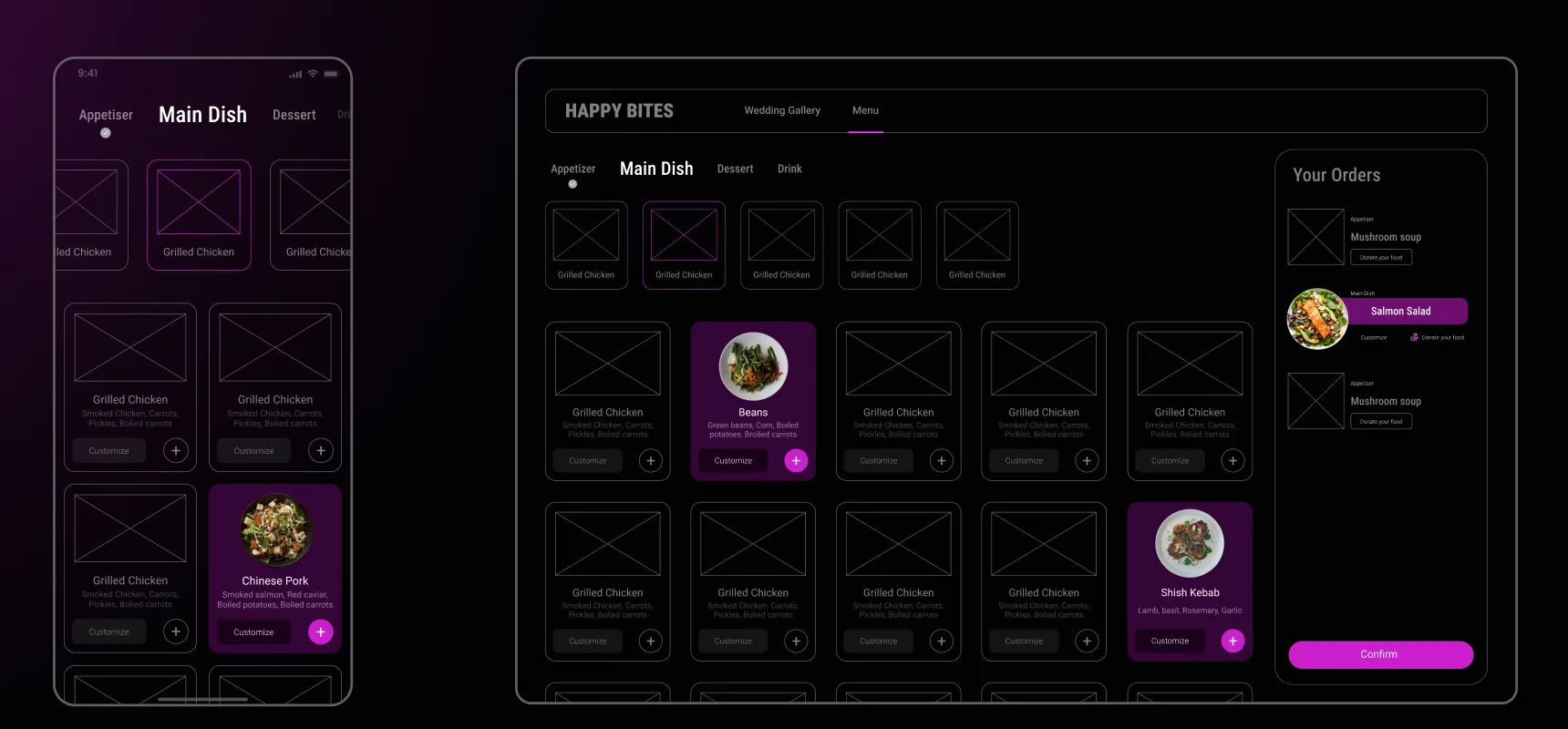
Wireframes of the menu on a phone and on a laptop, with a few dishes highlighted

07 — Interface

The final screens.

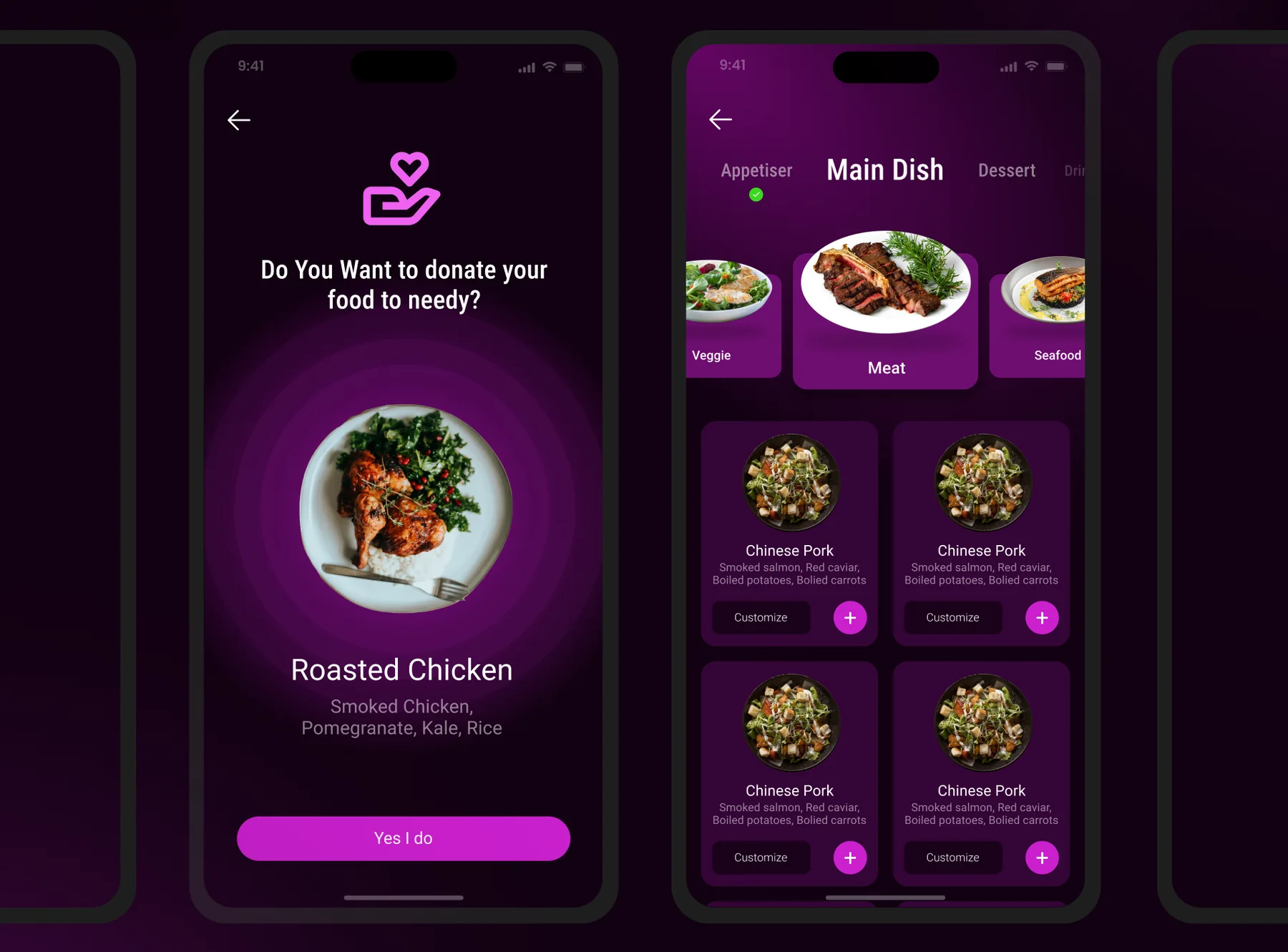
Dishes are the heroes. Each one sits in a glowing circle, and every action has one clear magenta button.
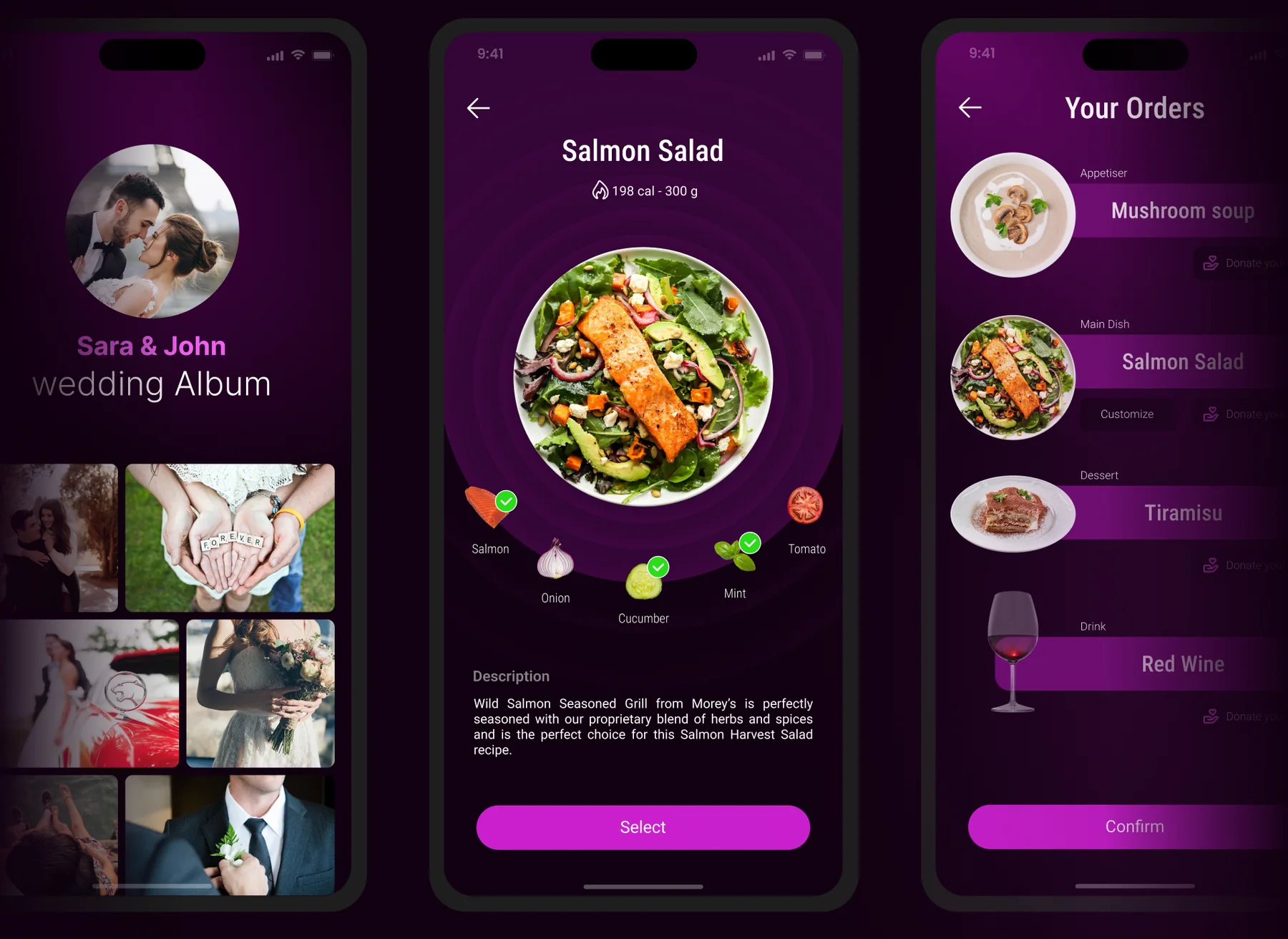
Mobile screens: wedding photo album, a Salmon Salad dish page and the Your Orders list
Mobile screens: the donate-your-food prompt and the Main Dish menu

Desktop

Desktop menu with course tabs, dish cards and the Your Orders panel
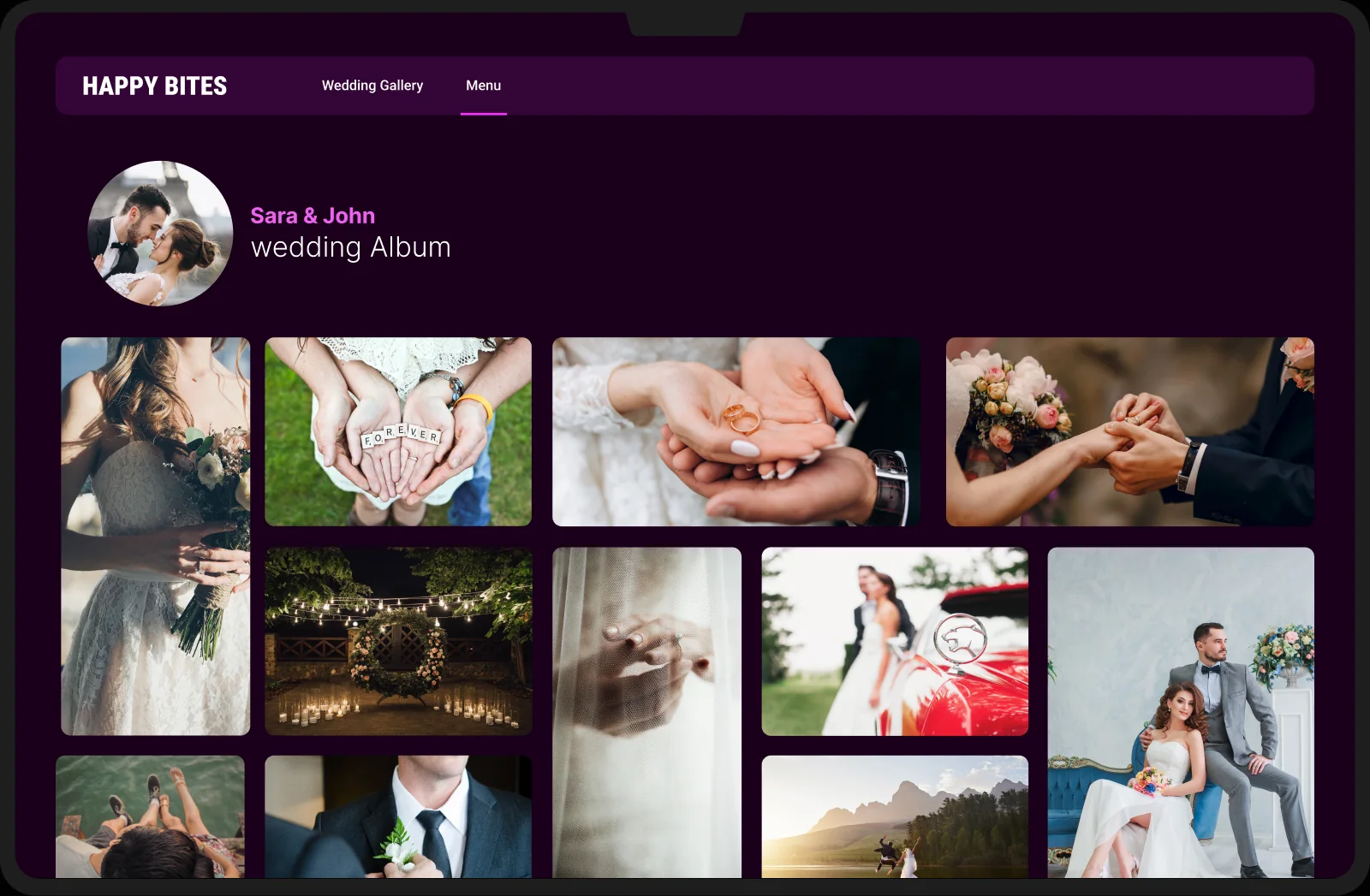
Desktop wedding album page with a photo grid

08 — Usability testing

Two rounds, four fixes.

Two rounds of usability studies. The first guided the move from wireframes to mockups. The second used a high-fidelity prototype and showed which parts of the mockups still needed refining.

For most users, it wasn’t clear what the goal of donation is, or how to donate their plate. And not everyone knew how to customise their food.
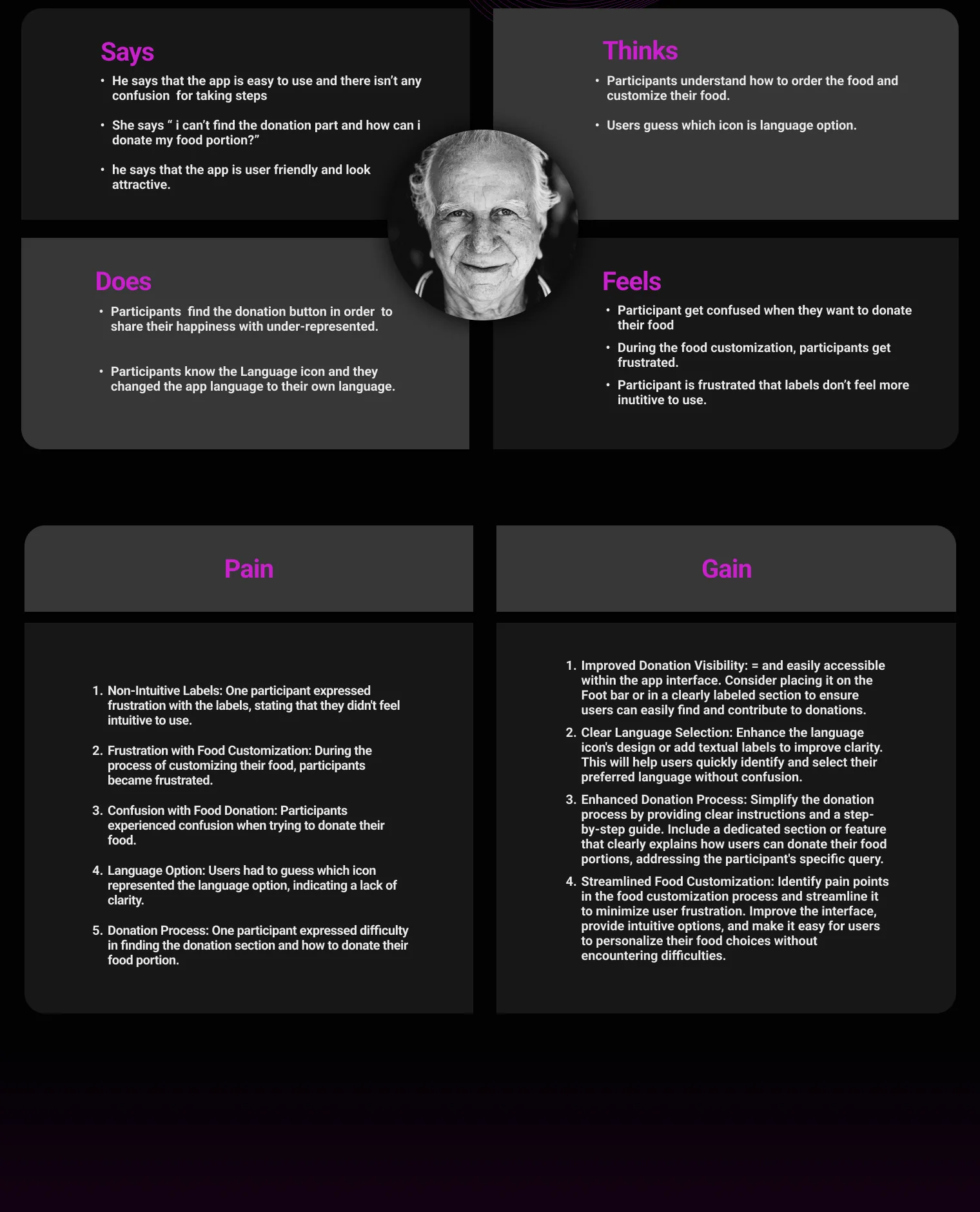
Synthesis board with what users say, think, do and feel, plus their pains and gains

Pains

  • One participant found the labels non-intuitive.
  • Customising food was frustrating.
  • Donating food was confusing.
  • Users had to guess which icon was the language option.
  • One participant struggled to find the donation section and how to donate.

Gains

  • Make donation easy to find, for example in the footer bar or a clearly labelled section.
  • Make the language icon clearer, or add a text label.
  • Simplify the donation process with clear, step-by-step instructions.
  • Streamline food customisation with intuitive options.

09 — Iteration

What changed after testing.

01
Customise, one tap away

A Customize button was added to the food order, so people can customise their food more easily. Food categories were added to help guests find dishes faster.
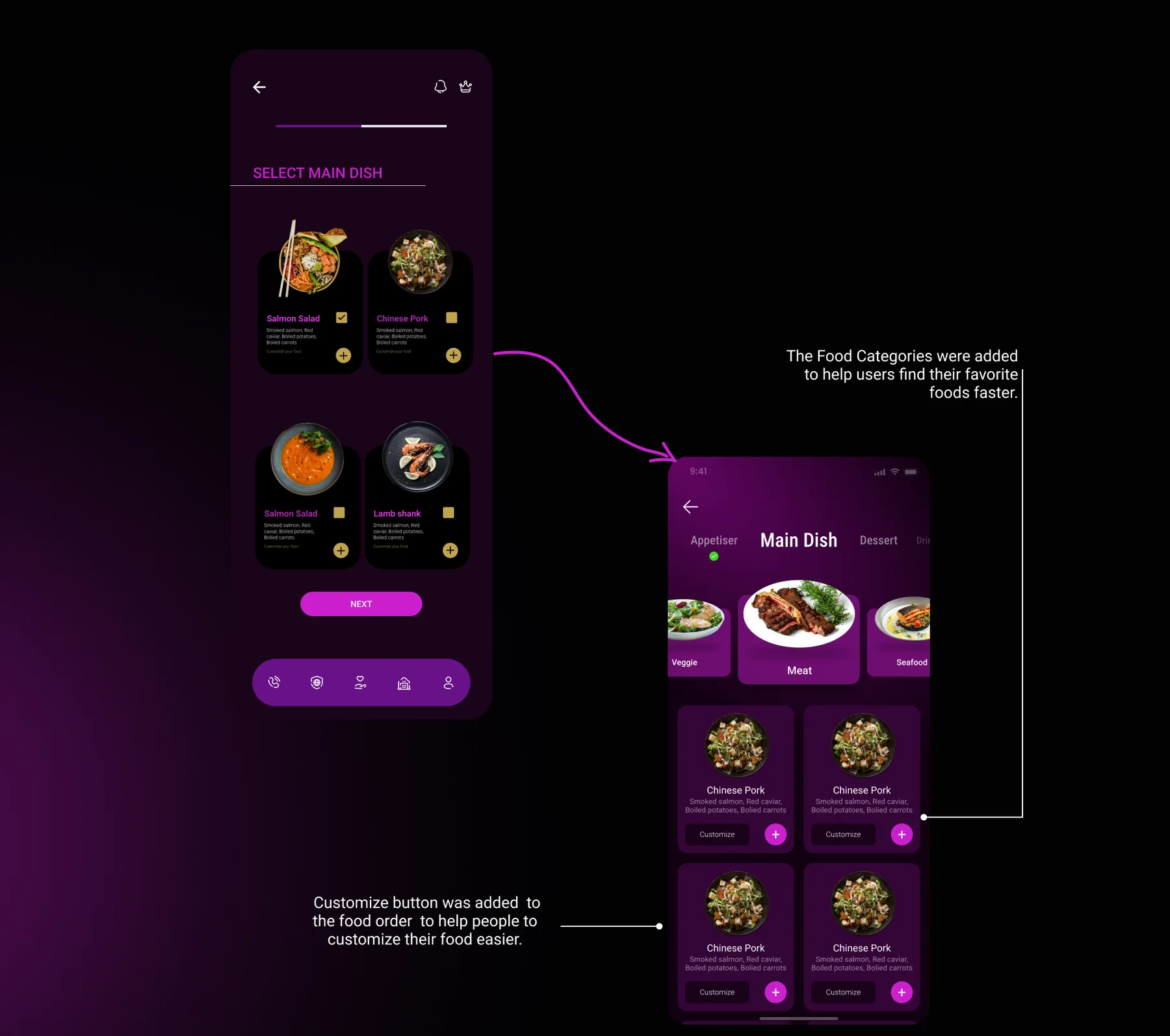
Before and after: the Select Main Dish screen with food categories and Customize buttons
02
Ingredients with labels

The pictures of the ingredients got labels, so it is easier to see what is in a dish.
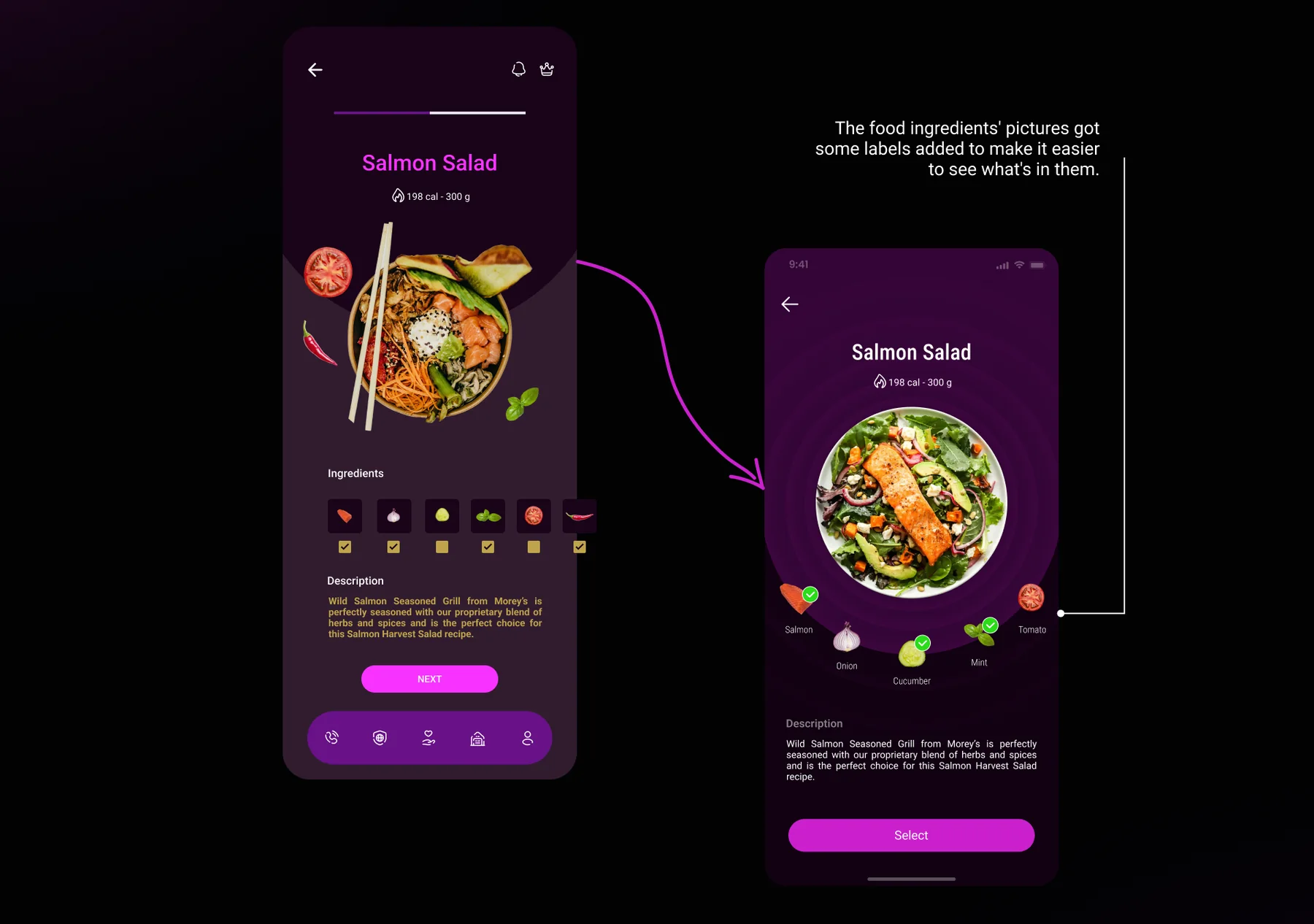
Before and after: the Salmon Salad ingredient screen with labelled ingredient icons
03
A tidier order summary

The food order summary got a makeover, so guests can easily see what they have ordered.
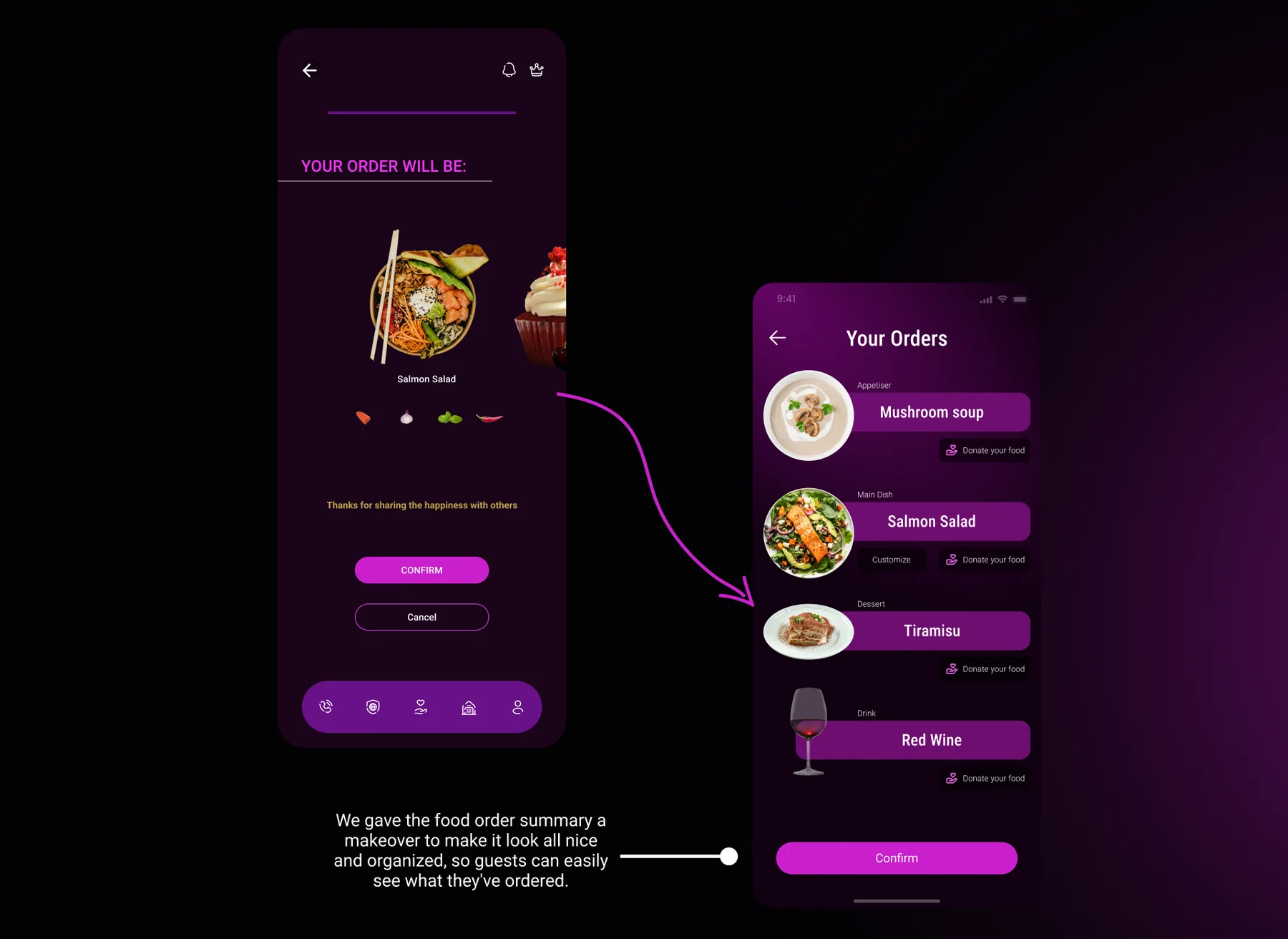
Before and after: the order summary, from a single dish preview to a clear Your Orders list
04
Donation you can’t miss

The donation icon is highlighted, with a description, so users can spot it and know what it means.
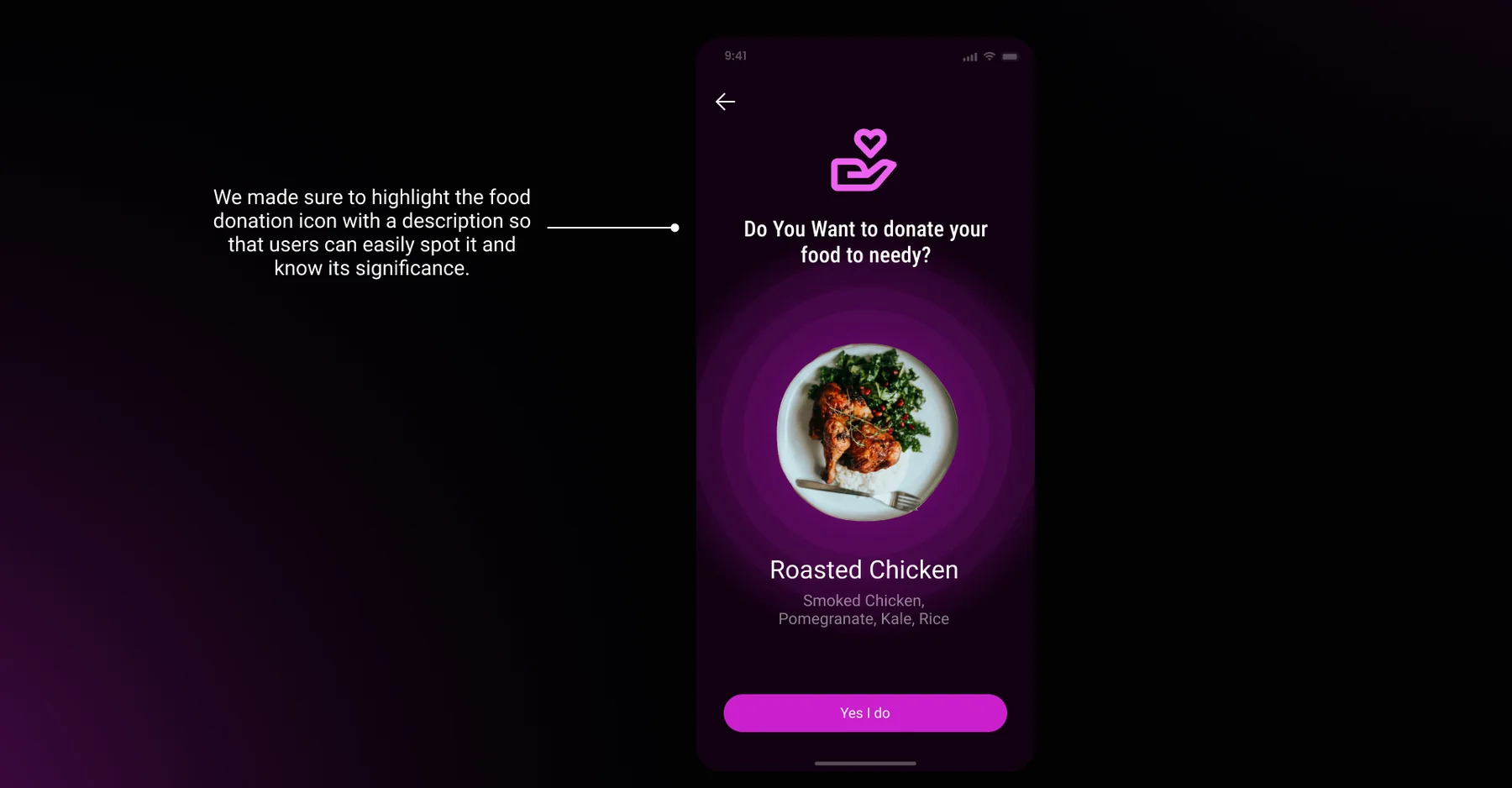
The donate prompt: Do you want to donate your food to needy, with the dish and a Yes I do button

10 — What’s next

Next steps, and what I learned.

  1. Run more user research to find other areas of user need.
  2. Test again with people who have different needs.
  3. Run another round of usability studies to check that the pain points users hit are really fixed.

My first ideas for the app were only the beginning. Usability studies and feedback from peers shaped every iteration of the design.
More case studies

Keep exploring.